How Lemon works
A short walkthrough of the app, from setting up your first kitchen to exporting records for an inspection. Written for chefs, kitchen managers and restaurant owners.
Browse documentation
Start here
Browse by topic
What Lemon does
Lemon replaces the paper food safety diary. Your team records fridge temperatures, food checks, deliveries and cleaning checklists on a phone. Every entry is saved with the date, the time and the name of the person who recorded it. When an inspector asks to see your records, you export a PDF.
Create your account
- Open app.getlemon.app
- Tap Create account
- Enter your name, your email and a password
You are signed in straight away. The first 14 days are free and no card is needed.
If you forget your password, tap Forgot password? on the sign in screen. Lemon emails you a six digit code, and you use it to set a new password.
Set up your kitchen
A location in Lemon is one site. One restaurant, one kitchen, one address. If you run a café and a dark kitchen down the road, that is two locations.
Setting one up takes one field: a name, such as Main Kitchen or Soho Branch. Lemon then puts in place:
- The Weekly EHO Checklist, ready to run
- Check reminders at 08:00 and 17:00, UK time
- Your 14 day free trial
Next, add the units your team checks and invite the people who will do the checking.
Add fridges and freezers
Add one unit for every fridge, freezer or hot holding cabinet your team records a temperature for. Open Settings, then Fridges & Freezers, then Add a unit.
Each unit has a name, a type and an acceptable range. Lemon fills in a starting range when you pick the type:
- Fridge: 0 to 8 degrees Celsius
- Freezer: minus 25 to minus 18 degrees Celsius
- Hot hold: 63 to 90 degrees Celsius
Change the range to match your own house rules. Any reading outside it is flagged as out of range.
When a unit leaves the kitchen, open it and tap Archive unit. It stops appearing in daily recording, and its past readings stay in your records.
Invite your team
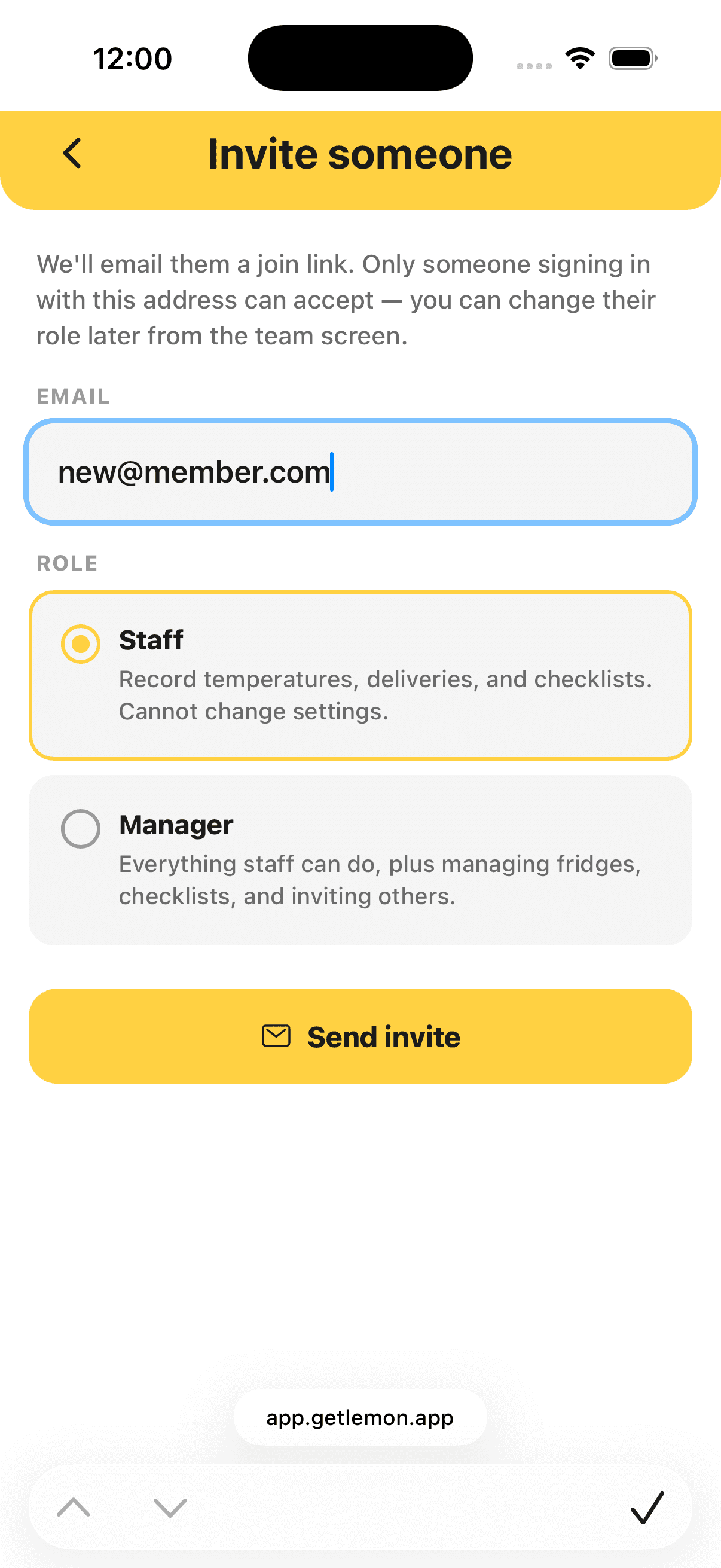
Everyone uses Lemon from their own phone, and their name goes on every entry they record. That is what makes the records worth reading.
- Open Settings, then Team
- Tap Invite someone
- Enter their email address and pick Staff or Manager
- Lemon emails them a link, and you can share the same link yourself
The link lasts 7 days and works only for the address you invited. They set their own password and can start recording straight away.
Who can do what
Everyone has one of three roles at each kitchen.
Owner
- Everything a manager can do
- Creates and deletes kitchens
- Changes anyone else's role
- Manages the plan and billing
Manager
- Everything a staff member can do
- Sets up fridges, checklists, suppliers and the allergen matrix
- Invites team members
Staff
- Records temperatures, food checks, checklists and deliveries
- Reads the allergen matrix
- Exports records
- Cannot change settings or invite others
Change a role at any time in Settings → Team.
The Today screen
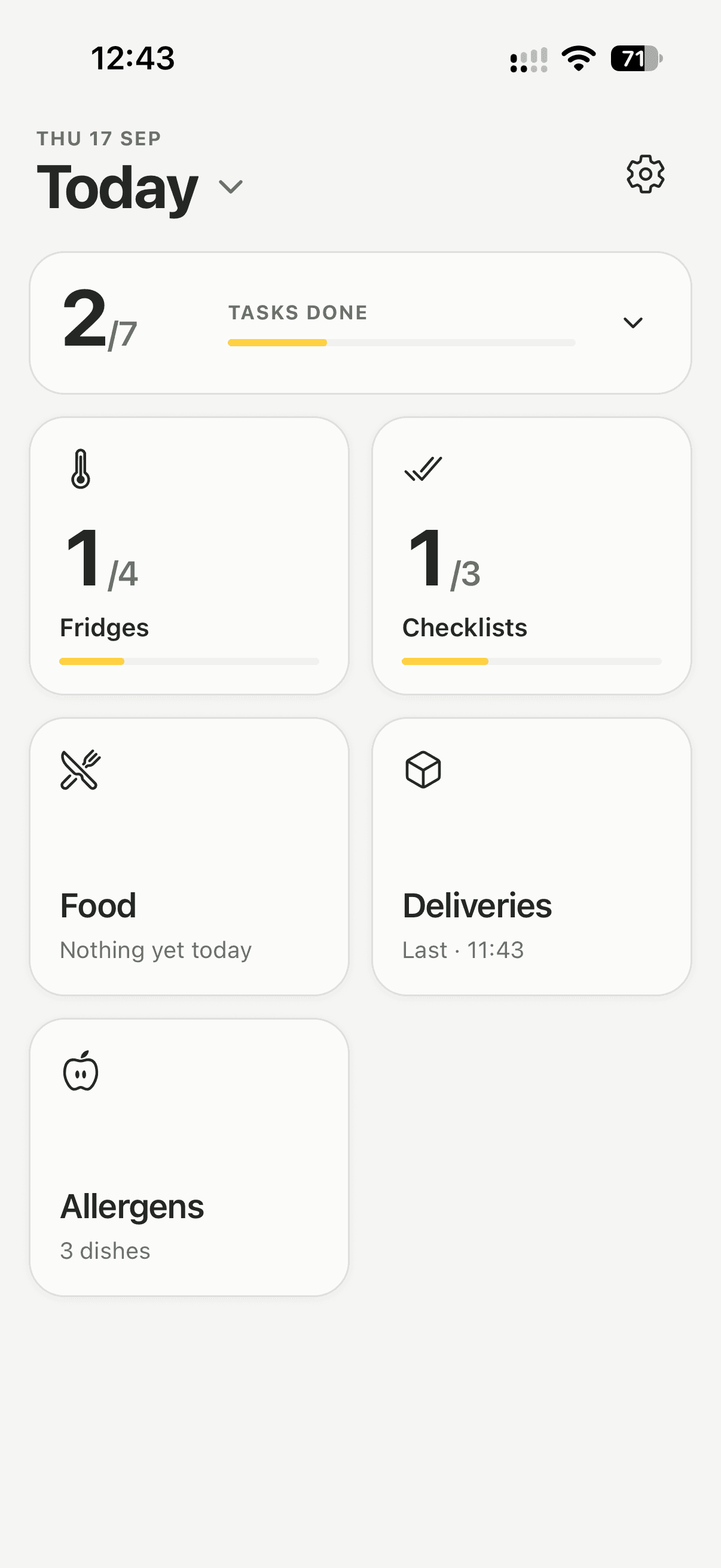
Today is the home screen. It shows what is done and what is still open for the day.
- Tasks done counts your fridge rounds and the checklists due today
- Tiles for Fridges, Checklists, Food and Deliveries, plus Allergens when it is switched on
- A banner at the top whenever an issue is open
- The arrow beside Today opens the monthly overview. The gear opens Settings
Fridge and checklist tiles fill their progress bar as the day goes on, and show a tick once everything is recorded.
Fridge temperatures
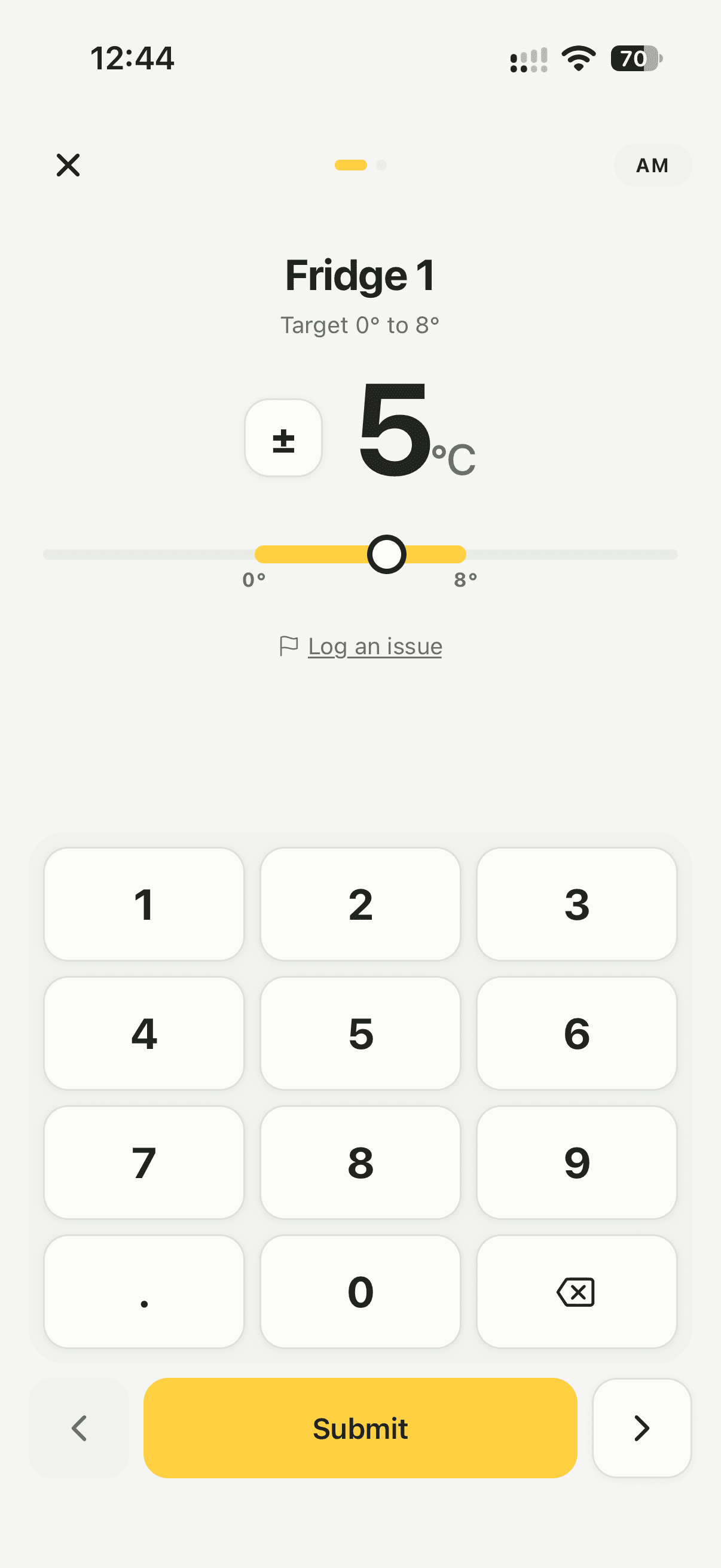
Most kitchens check temperatures twice a day, morning and evening. Lemon walks you through your units one at a time.
- Tap the Fridges tile
- Type the reading on the keypad, using ± for below zero
- Tap the arrow for the next unit
- Tap Submit at the end of the round
The unit's acceptable range sits under the reading, and the last reading of the day is shown beside it so you can see whether anything has moved. If a reading is out of range, Lemon says so while you type and asks you to file a report once the round is saved.
Nothing wrong with the number but something wrong with the unit? Tap Log an issue on that unit during the round.
Food checks
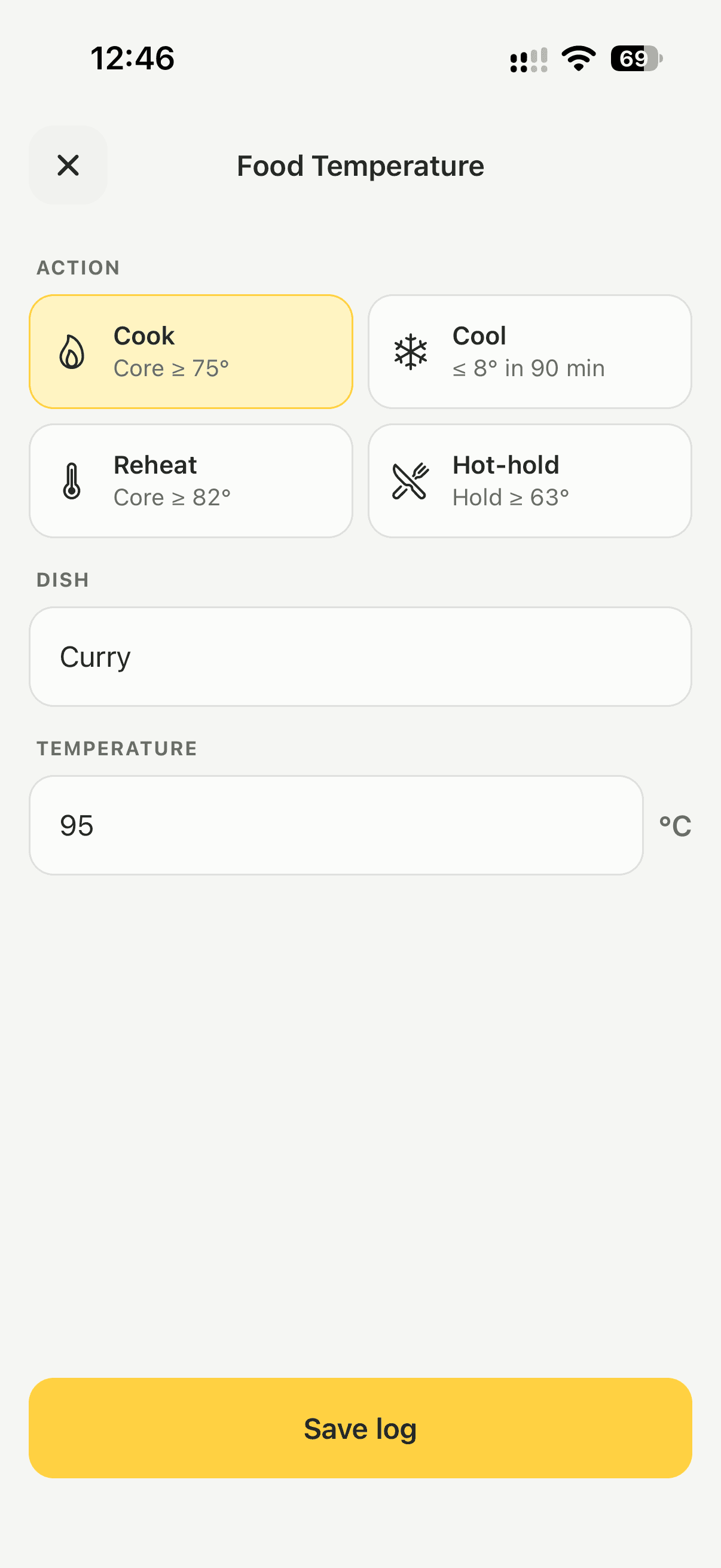
The Food tile is for probe checks on dishes. Pick the action, enter the dish and the reading, then save. The target for each action is printed on the button, so nobody has to remember it:
- Cook: core at 75 degrees or above
- Cool: down to 8 degrees within 90 minutes
- Reheat: core at 82 degrees or above
- Hot hold: 63 degrees or above
Food checks are listed on the day they were recorded, with the name of the person who took the reading.
Checklists
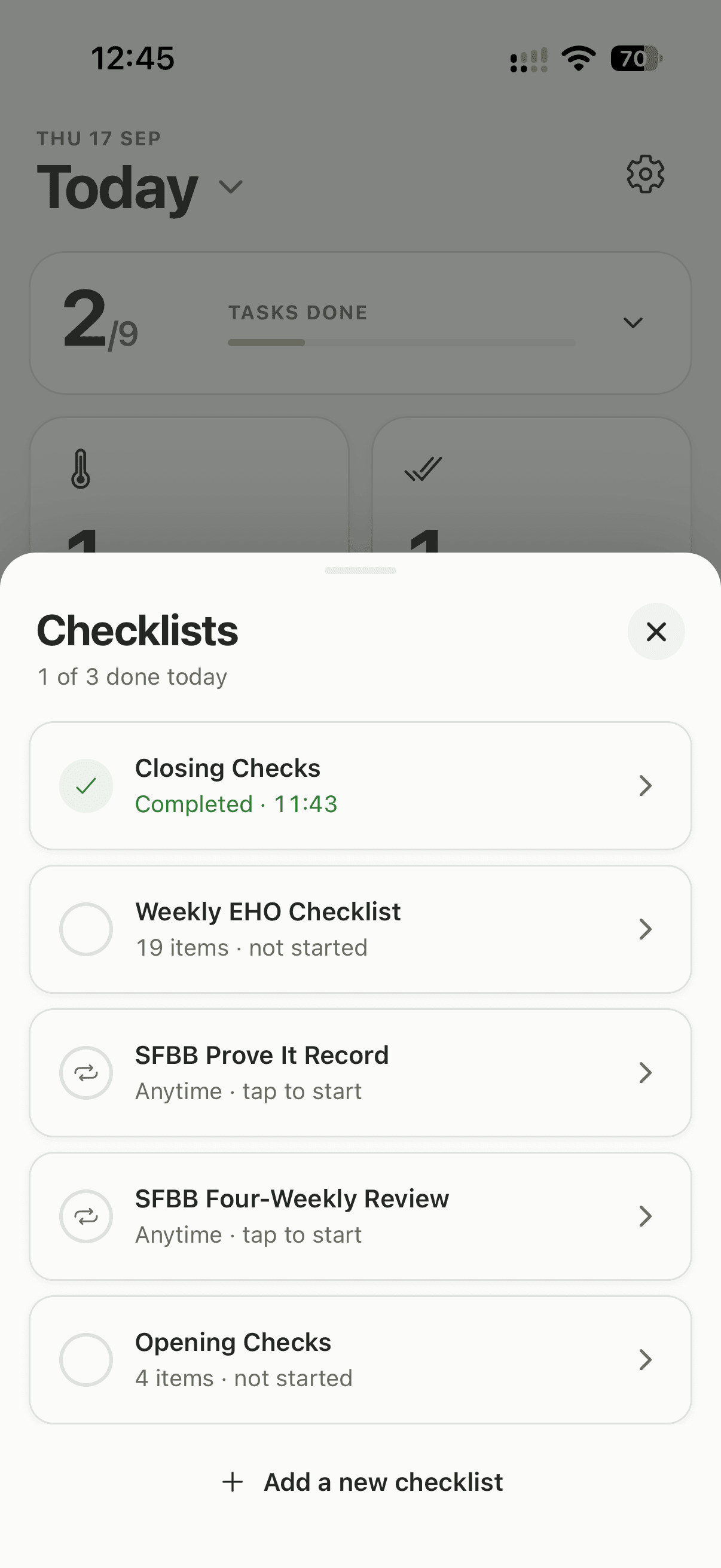
Checklists cover everything that is not a temperature. Your kitchen starts with the Weekly EHO Checklist, which is ready to run and cannot be edited.
Owners and managers switch on more in Settings → Checklists:
- Daily: Opening Checks, Closing Checks, SFBB Daily Diary
- Weekly: Weekly Deep Clean
- Monthly: Hygiene Audit, Pest Control Check, Probe Calibration
- Anytime: SFBB Four Weekly Review, SFBB Staff Training Record, SFBB Prove It Record
Anytime checklists have no deadline and can be filled in as often as you need, which suits records that follow a person or an event rather than the calendar. Every list except the Weekly EHO can be edited, and you can build your own from scratch.
To run one:
- Tap the Checklists tile and pick a list
- Answer each task Yes, No or N/A
- A No needs a short note saying what was wrong and what you did
- Tap Complete, or Save & exit to finish it later
A completed list is saved with your name and the time. Past runs sit under View history & export on each list.
Deliveries
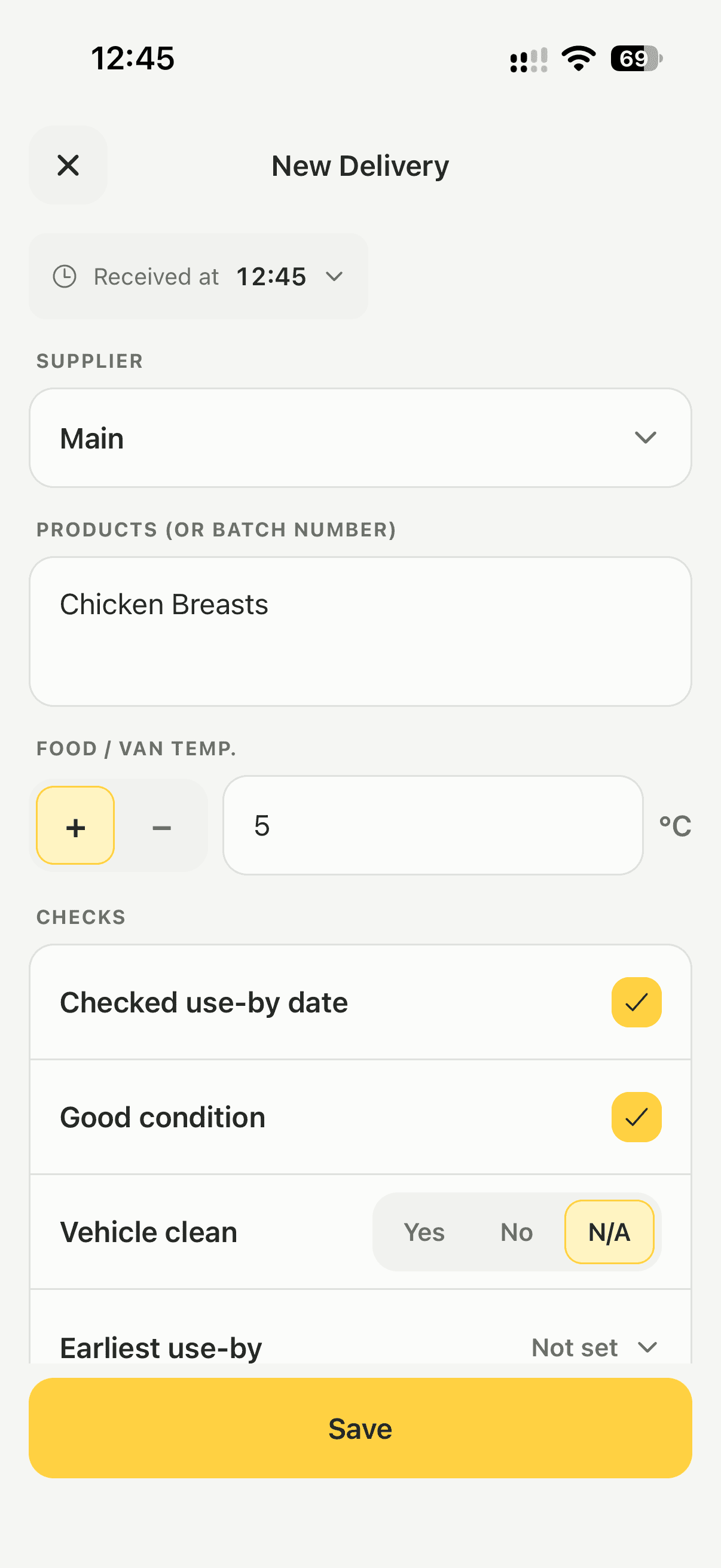
Logging deliveries is how you show traceability, one step back and one step forward. Tap the Deliveries tile and record:
- The time it arrived, which you can set back to earlier today
- The supplier
- What was delivered, or the batch number
- The food or van temperature
- Your checks: use by date checked, good condition, vehicle clean, and the earliest use by date
Turn off Good condition and Lemon asks what was wrong before it will save. That note is the record of a rejected or damaged delivery.
Anyone can add a supplier while logging a delivery. Owners and managers tidy the list in Settings → Suppliers. Removing a supplier never changes past deliveries, because each one keeps the name it was logged with.
Allergen matrix
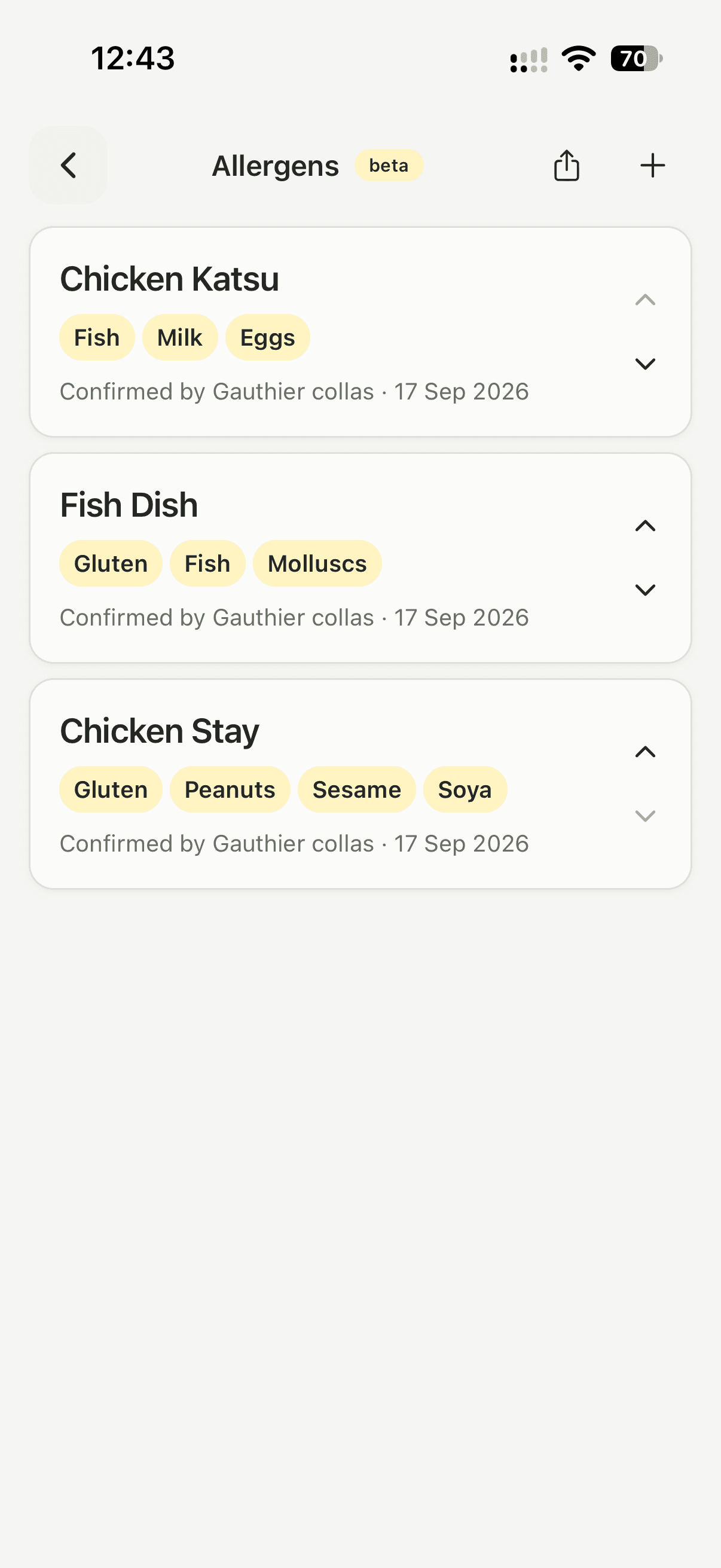
The allergen matrix holds your dishes and the allergens in each one, so anyone on shift can answer a customer question without guessing, and you can hand a current matrix to an inspector.
Switch it on
An owner or manager turns on Allergen matrix in Settings, under Additional features. An Allergens tile then appears on Today for the whole team.
Add a dish
- Tap the Allergens tile, then the plus button
- Enter the dish name as it reads on your menu
- Tick every allergen the dish contains
- Add a note if it helps, for example a version without gluten on request
- Tap Add dish
The 14 regulated allergens are all there, in the order the FSA lists them: celery, cereals containing gluten, crustaceans, eggs, fish, lupin, milk, molluscs, mustard, tree nuts, peanuts, sesame, soya, and sulphur dioxide and sulphites.
Keep it current
Each dish shows who confirmed it and when, so the matrix says how fresh it is. Saving a dish again updates that stamp. Use the arrows to put dishes in menu order, and archive a dish when it comes off the menu.
Owners and managers edit the matrix. Everyone can open it and read it during service.
Share it
The share button on the Allergens screen creates a PDF of the whole matrix, one row per dish and one column per allergen, dated on the day you make it. While the feature is on, the same matrix is added to the end of your exported report.
Issues and corrective actions
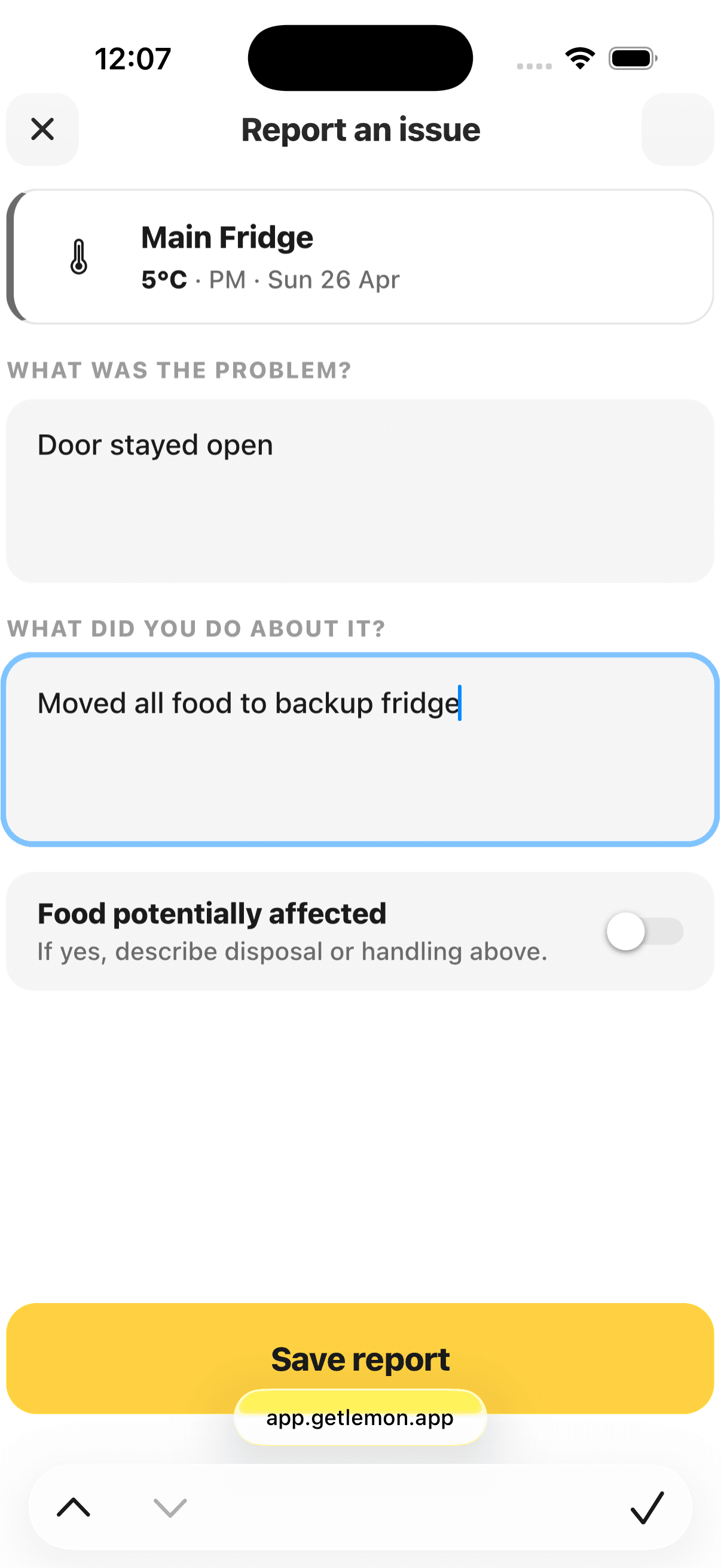
An issue is anything that went wrong: a fridge running warm, a damaged seal, a delivery you turned away. Lemon asks you to file one whenever a temperature is out of range, and you can log one yourself during a temperature round.
An issue records:
- What the problem was
- What you did about it
- Whether food was potentially affected
Add updates as things develop, then tap Mark as resolved when it is closed out. Open issues show on Today and on the monthly overview, and the whole timeline goes into your exported report: problem, action, resolution.
Monthly overview
Tap the arrow beside Today to open the month. Each day is marked in one of three ways:
- Recorded: the checks for that day are in
- Missing records: something was not recorded
- Open issue: an issue from that day is still open
A day with an open issue is shown as an issue even when records are missing too.
Tap any past day to see what was recorded: fridge readings morning and evening, checklists, food checks and deliveries. If a temperature reading is missing, you can add it there, and it is saved with the time you actually entered it.
Reminders
The iPhone and Android apps remind your team on the device. There is nothing to set up beyond allowing notifications when the phone asks.
- A morning reminder at 08:00 and an evening one at 17:00
- Nothing if that round is already recorded
- A short nudge each day of your first week, while you get set up
Reminder times are fixed for now and cannot be changed in settings. On Android, battery saving settings can hold a reminder back, so treat it as a prompt rather than a clock.
Export a report
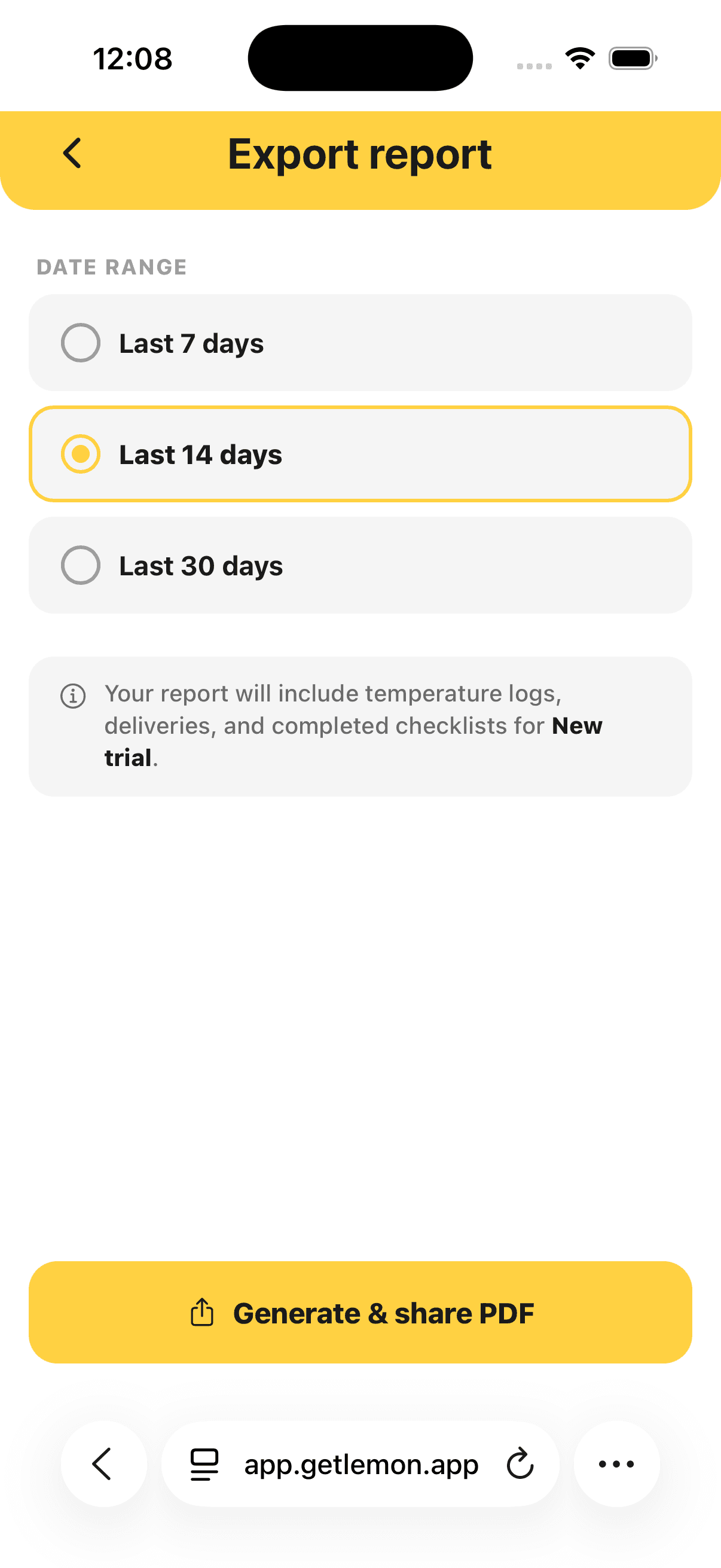
Open Settings, then Export PDF Report. Pick the last 7, 14 or 30 days, all time, or a range of months, then tap Generate & share PDF.
The report contains:
- Every temperature reading, with who recorded it and when
- Out of range readings, called out on their own
- The full timeline of each corrective action
- Deliveries
- Completed checklists
- Your allergen matrix, when the feature is on
The PDF goes through your phone's share sheet, so you can email it, AirDrop it, or save it to your files while the inspector waits.
More than one kitchen
Each site is its own location, with its own fridges, checklists, suppliers, team and records. Nothing crosses between them.
- Open Settings and tap the location card at the top
- Switch to another kitchen, or tap Add location
Only owners can add a kitchen, and each one adds £19 per month to the bill.
Plan and billing
One plan covers everything: every check type, every feature, unlimited team members and all exports.
It costs £19 per month, per kitchen. The first 14 days are free and no card is needed to start. Near the end of the trial we email you to add one.
Owners manage billing on the web:
- Sign in at app.getlemon.app
- Go to Billing
From there you can see your next invoice, update your card, add kitchens and cancel.
Privacy and your data
Your records live in European data centres. Lemon is built and run by Lemon App OÜ in Estonia, and most of our customers are in the UK, so we treat GDPR as the floor.
- Only the team you invite can see your records
- Staff names appear on the entries they record
- We never sell your data
- You can export everything from Settings → Export PDF Report
- You can delete your account from Settings → Delete Account
If you cancel or delete, your records are still yours. Export them first.
The full policy is at /privacy.
Help and support
Open Settings, then Chat with Us. Common questions are answered on the spot, and anything else goes to the team. Their reply turns up in the same chat.
You can also email support@getlemon.app. We are a small team in Edinburgh and Tallinn, and we answer every message ourselves.
For pricing, keeping records digitally and how the trial works, the FAQ on getlemon.app is a good first stop.